
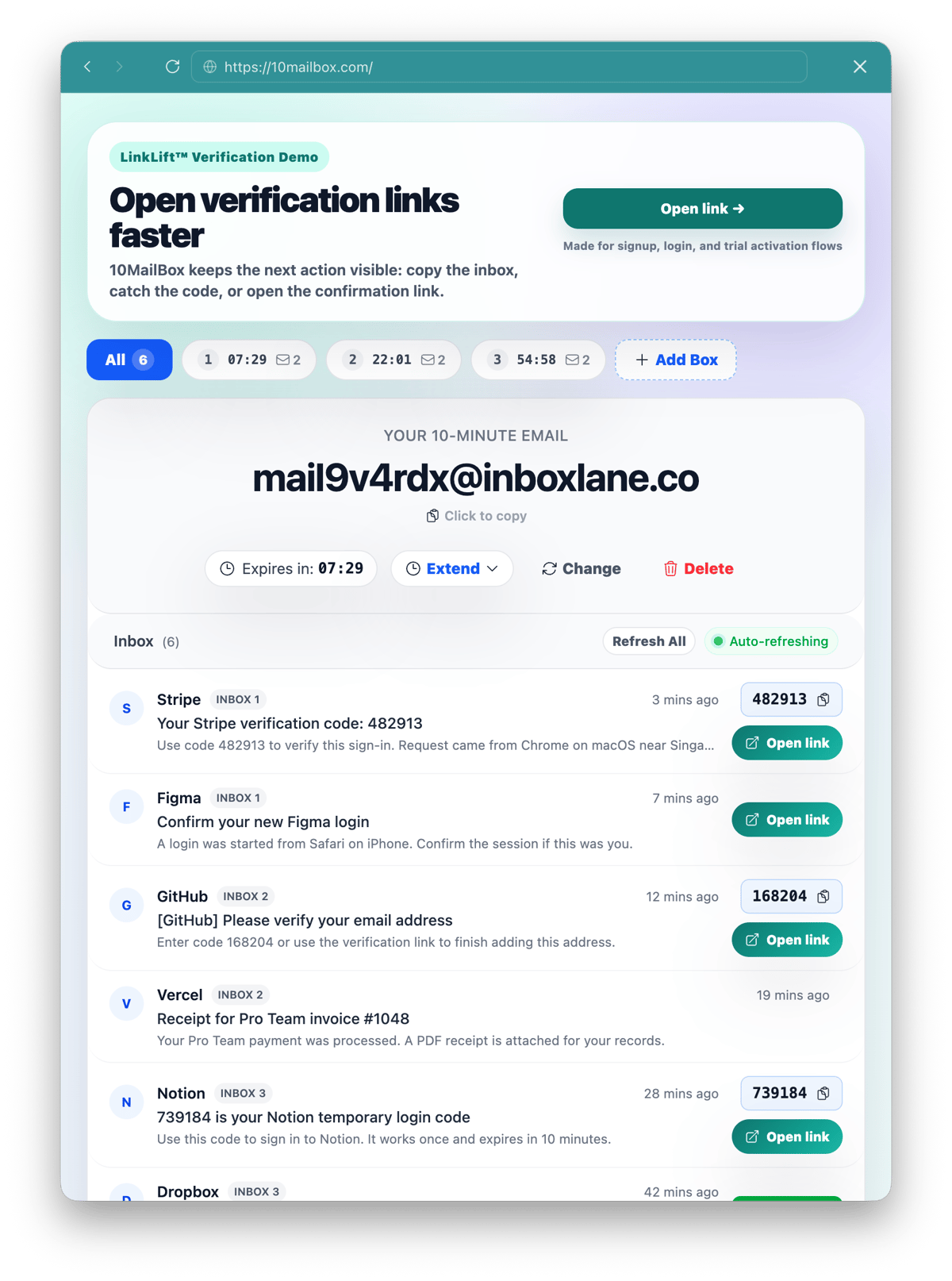
LinkLift helps you find confirmation and verification links faster inside a temporary inbox.
Use 10MailBox when you need a disposable email address for a fast verification link. Copy the generated inbox address on the homepage, submit it to the website, wait for the incoming email, and open the confirmation link within the 10-minute window.
Use the homepage inbox tool
The live verification inbox appears above this article and on the homepage: open the 10MailBox tool. Keep that tab open while you complete the external signup form so the verification email can appear on the same screen.
Why are verification emails so slow to arrive?
Verification emails are slow because delivery depends on the sender's mail queue, spam checks, rate limits, and domain filtering. A temporary inbox does not control the sender, but it removes the friction of switching to your personal mailbox.
The slowest part is often finding the correct action inside the email. Some messages contain multiple links, tracking redirects, or branded buttons that make the real confirmation URL harder to spot.
How to use 10MailBox for account verification
The fastest way to handle email verification is to copy a temporary email from 10MailBox into the signup form. Use it only for low-risk accounts where you do not need long-term recovery.
- Open 10MailBox to generate a temporary inbox.
- Copy the active 10-minute email address.
- Paste it into the target platform's signup or verification form.
- Submit the form to trigger the authentication email.
- Watch the 10MailBox inbox for the incoming message.
- Open the verification link from the message before the inbox expires.
If the website requires re-verification, wait 30 to 60 seconds before requesting a duplicate email. Some senders throttle repeated messages to reduce abuse.
How LinkLift helps with confirmation links
LinkLift™ helps surface actionable links commonly used for verification, account confirmation, profile activation, magic login, and password reset flows. The goal is to make the useful link easier to find than it is in a normal email body.
Even with LinkLift, you should still check that the target domain matches the website you are verifying. Do not open suspicious links, unexpected domains, or messages you did not request.
What to do if the confirmation link does not arrive
If the confirmation link does not arrive, first check whether the website blocked the temporary email domain or delayed the sender-side email. Delivery problems are usually caused by the sender, a mistyped address, rate limiting, or the 10-minute inbox expiring before the message arrives.
Check these basics:
- Did you paste the exact email address?
- Did the sender say delivery may take several minutes?
- Did you request multiple emails too quickly?
- Has the 10-minute inbox timer expired?
- Does the target website block disposable email services?
For broader troubleshooting, check the 10MailBox FAQ.
When is a temporary inbox NOT suitable for verification?
A temporary inbox is not suitable when the account must be recovered later. Do not use 10MailBox for banking, healthcare, legal documents, work accounts, payment gateways, government services, or any permanent personal account.
If losing access to the email address would lock you out, use a permanent mailbox instead.
Related pages
- Complete guide: How to Use a 10-Minute Email Address.
- OTP workflow: 10-Minute Email for OTP Codes.
- Questions and limits: 10MailBox FAQ.
FAQ
Can I use 10MailBox for account verification?
Yes. You can use 10MailBox for low-risk verification tasks where you only need to receive one confirmation link or one OTP code.
What if the verification link expires?
Request a fresh email from the original website if your current inbox is still active. If the 10-minute timer has ended, generate a new inbox and restart the external verification flow.
What if a website rejects the address?
Some platforms block temporary email domains. If an address is rejected, use a standard, persistent email provider for that service.
Verify faster
Need a quick email for verification? Open 10MailBox, copy your temporary address, and finish the confirmation step before the timer ends.